

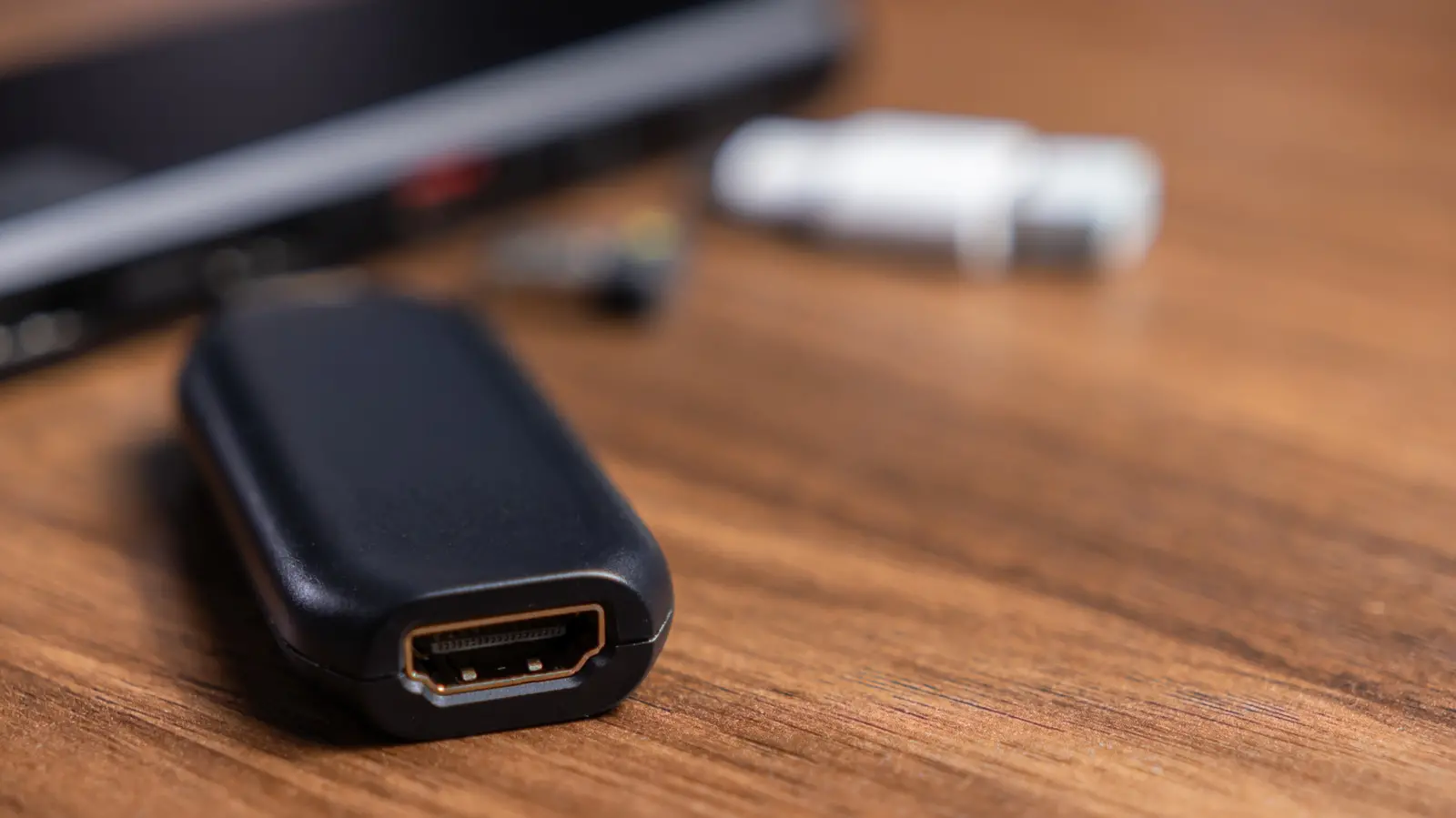
Since its introduction in 2002, the HDMI cable has revolutionized home entertainment. Today, HDMI is the standard interface for connecting televisions, gaming consoles, streaming devices, and media players. According to recent market research, HDMI cables are present in approximately 120 million U.S. homes, with around 85% of these households owning at least two HDMI-compatible devices. This ubiquity means that most people have a drawer or box filled with tangled HDMI cables—often leftover from previous upgrades or purchases.
But what happens when a cable is too short? Instead of buying a brand-new, longer cable, many consumers turn to an HDMI coupler—also called an HDMI joiner or HDMI barrel adapter. This small, inexpensive device is a female-to-female connector that allows you to join two or more HDMI cables together, effectively extending the reach of your existing cable run. It is a cost-effective solution for short-distance extensions, especially if you already have a few spare HDMI cables lying around.
Key Facts About HDMI Couplers
- Passive Device: HDMI couplers are passive—they do not amplify or regenerate the signal. They simply pass the digital data through, meaning signal quality depends entirely on the cables and the total length.
- Maximum Length: For standard HDMI (up to 4K resolution), the recommended maximum total cable run is about 50 feet (15 meters). Exceeding this can lead to signal degradation, flickering, or no display.
- Cost-Effective: A single 8K-compatible coupler typically costs less than a decent HDMI cable. Multi-packs are even more affordable—for example, a pack of six couplers might retail for $9.99 (around $1.67 each).
- Simplicity: No power source or configuration is needed. Simply plug the male ends of two cables into the coupler, and you have an extended cable.
- Signal Degradation Risk: Every connection point introduces a slight impedance mismatch and potential for signal loss. While well-made couplers minimize this, using multiple couplers in a series can compound the problem.
How HDMI Became the Standard
The High-Definition Multimedia Interface (HDMI) was developed by a consortium of electronics manufacturers—including Sony, Panasonic, Philips, and others—to replace older analog standards like component video and VGA. It supports both video and audio over a single cable, simplifying home theater setups. Over the years, HDMI has evolved through several versions: HDMI 1.0 (2002) supported 1080p, HDMI 1.4 (2009) added 4K and Ethernet, HDMI 2.0 (2013) increased bandwidth for 4K at 60Hz, and HDMI 2.1 (2017) supports 8K and high refresh rates. Each new generation requires cables capable of handling higher data rates. While couplers themselves are generally backward compatible, using an older coupler with a high-speed signal may introduce issues.
When Should You Use an HDMI Coupler?
HDMI couplers are ideal for temporary setups or when you need to extend a cable by a short distance—typically up to 15-20 feet beyond the base cable. Common scenarios include:
- Relocating a TV or monitor a few feet from its original position.
- Connecting a gaming console or streaming device that is placed on a different shelf.
- Running cables behind furniture or through walls where a single long cable is difficult to thread.
- Using leftover shorter cables from previous installations to avoid buying new ones.
However, for permanent installations or longer runs, a single continuous cable is often recommended over multiple spliced sections. This is because each coupler introduces a tiny amount of signal loss, and cumulative losses can degrade picture quality, especially at higher resolutions like 4K or 8K.
Passive vs. Active Solutions
As mentioned, HDMI couplers are passive. While they work fine for short extensions, they cannot compensate for signal attenuation over long distances. If you need to extend an HDMI signal beyond 50 feet (or even 30 feet for 4K HDR content), you should consider an active solution. Active HDMI repeaters or extenders contain electronics that regenerate the signal, allowing runs of up to 100 feet for 4K and 135 feet for 1080p. These devices require external power (usually via USB or a wall adapter) and cost more than a simple coupler—typically $20–$50. Another option is an HDMI over Ethernet extender, which uses Cat5/6 cables to transmit signals over hundreds of feet.
Alternatives to HDMI Couplers
Besides couplers and active repeaters, there are other HDMI adapters and splitters that can help optimize your setup:
- HDMI Splitters: Allow one source (e.g., a cable box) to feed multiple displays. Some are passive, but for reliable performance on more than two displays, an active splitter is needed.
- HDMI Switches: Allow multiple sources (e.g., a game console, streaming stick, and Blu-ray player) to share one TV input.
- HDMI Angled Adapters: Useful for tight spaces behind TVs where the cable plug might bend excessively.
- HDMI to Optical/Coax Converters: For extremely long runs (over 100 feet), converting HDMI to an optical fiber signal is the most reliable method.
Best Practices for Using HDMI Couplers
To minimize signal issues, follow these guidelines:
- Use high-quality, certified HDMI cables (e.g., Premium High Speed or Ultra High Speed) that match the required bandwidth for your devices.
- Do not use more than two cables joined together via couplers. The cumulative length should stay within the 50-foot recommended maximum.
- Avoid daisy-chaining multiple couplers. Each additional connection point increases the risk of signal degradation.
- Ensure the coupler is securely plugged in—loose connections can cause intermittent signal loss.
- Test the setup before finalizing installation, especially if the cables will be hidden behind walls or furniture.
Signal Degradation Explained
Digital signals like HDMI are binary—they consist of ones and zeros. Up to a certain point, a weak but still detectable signal can be perfectly interpreted by the receiver. However, if signal loss (attenuation) becomes too great, errors occur. This can manifest as sparkles, black screens, or audio dropouts. The main causes are cable length, cable quality, and connection quality. Copper wire has inherent resistance, and higher frequencies (needed for 4K and 8K) are more susceptible to attenuation. Shielded cables help but do not eliminate the problem. Every coupler adds a tiny impedance mismatch where the signal reflects slightly, reducing the clean transition of data. While modern TVs and projectors have robust receivers that can tolerate some degradation, it is best to keep the path as direct as possible.
Many users report success using couplers with cables totaling 40–50 feet for 1080p content. At 4K, especially with HDR and high frame rates, a 30-foot limit is more realistic. For 8K, using a single high-quality cable under 10 feet is strongly recommended unless you have an active extender designed for 8K bandwidth.
HDMI Couplers in Professional Environments
In commercial settings—such as conference rooms, digital signage, or broadcast studios—HDMI couplers are less common because reliability is paramount. Instead, professionals use rack-mounted distribution amplifiers or fiber optic extenders. However, for temporary setups like trade shows or event staging, couplers are still used due to their low cost and ease of deployment. It is worth noting that the HDMI specification does not officially endorse using couplers, as signal integrity can vary. Manufacturers generally recommend using a single cable of the required length.
Historical Context: The Evolution of Cable Extension
Before HDMI, analog video connections like RCA composite, S-Video, and VGA were common. Extending those signals was relatively forgiving because analog signals degrade gracefully—you might see a faint ghost image or color shifting before losing the signal completely. Digital HDMI, on the other hand, either works or doesn't (or exhibits digital artifacts). This made the signal extension more of a science. Early HDMI cables were bulky and expensive, and couplers often caused issues. Modern cables with better shielding and tighter manufacturing tolerances have improved performance, but the fundamental physics remain the same.
Cost Comparison: Couplers vs. Longer Cables
Let's break down the economics. A decent 6-foot HDMI 2.1 cable might cost $10–$15. A 15-foot cable of similar quality might be $20–$25. A 25-foot cable jumps to $30–$50. Meanwhile, a pack of six couplers can be had for $10—meaning if you already own several short cables, you can create a 20-foot run by joining two 10-foot cables with a coupler for about $1.50. The savings multiply if you need multiple long runs. However, if you only own very short cables (e.g., 3 feet), using two couplers to join three cables might be impractical and risk signal loss. The sweet spot is joining two medium-length cables (6 to 10 feet each) to reach 12–20 feet.
Conclusion
HDMI couplers are straightforward, affordable tools that solve a common problem: a cable that is just a little too short. They work best for short extensions, using high-quality cables, and within the recommended length limits. For longer runs or critical applications, an active solution is preferable. By understanding the capabilities and limitations of HDMI couplers, you can make informed decisions that keep your entertainment system running smoothly without unnecessary expense.
As with any technology, the key is to match the solution to the need. A coupler may be all you need to rearrange your gaming setup or connect a streaming box in a new location. If you find yourself needing more than two cables joined together or a total length over 50 feet, consider upgrading to an active repeater and ensure your cables are certified for your content's resolution and refresh rate. The humble HDMI coupler remains a valuable tool in the modern tech toolkit—small, cheap, and surprisingly effective when used correctly.
Source: SlashGear News