

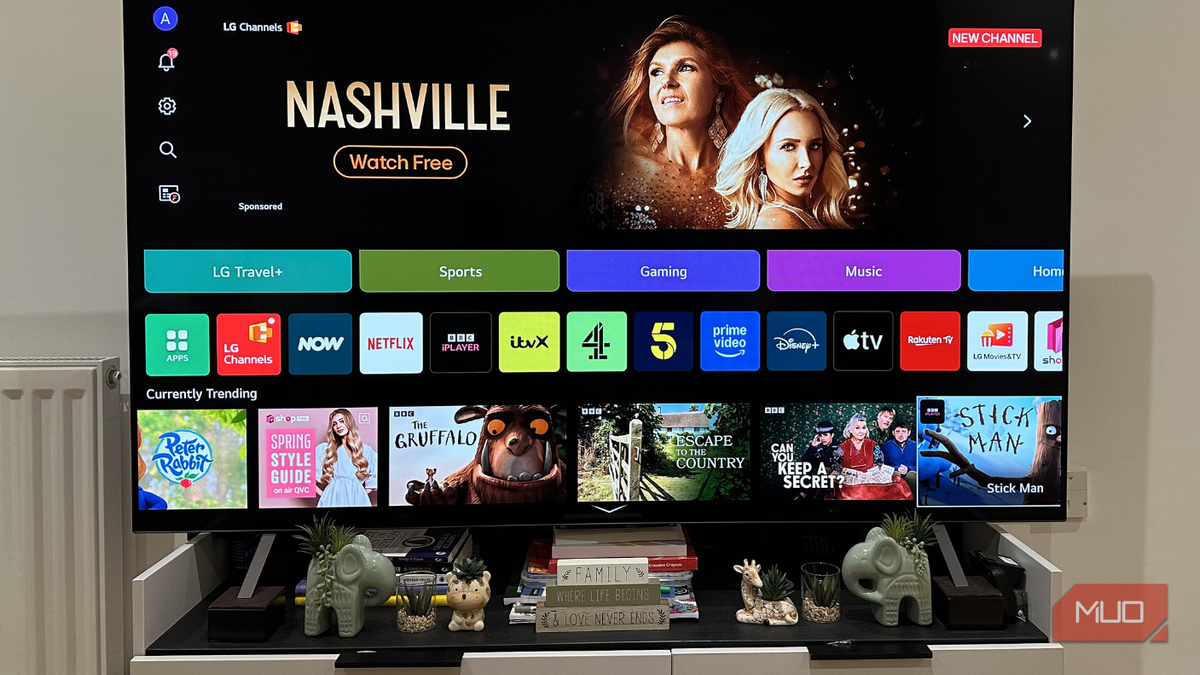
Your smart TV is essentially a data collection device that can also play Netflix and YouTube. And that is not an exaggeration by any means. By default, your smart TV tracks what you watch, constantly uses the microphone, logs your location, and builds an ad profile that gets sold to third parties. Sure, all of this is technically mentioned somewhere in the privacy policy of your TV. But if you do not want to go through that, you can manage all these privacy settings one by one.
ACR is the first thing to turn off on any TV
Your TV is watching you watch TV
If there is one smart TV feature that invades your privacy more than anything, it is Automatic Content Recognition (ACR). Almost every smart TV on the market has it, but most people do not even have a clue about it because it works entirely in the background. What this feature does is detect what you are watching on your TV. It does not matter what streaming app you are using—your manufacturer can tell what movie or TV show is on. Heck, ACR can even identify content when you are watching cable TV, a Blu-ray disc, or gaming on your PS5.
The way ACR works is simple. It constantly captures a snapshot of whatever appears on the screen and compares it to the TV manufacturer's database. It does this every few seconds. So yes, if something is on your screen, ACR is watching it. This profile helps the manufacturer collect data about what you watch, when you watch it, and even how long you stay on something before switching. All of this then gets sold to advertisers.
In fact, Vizio got caught doing the exact same thing back in 2017. Unfortunately, nothing has really changed even today. Samsung, LG, Sony, Fire TV, and Roku all run their own versions of ACR under different names. Samsung calls it Viewing Information Services, LG labels it Live Plus, while Fire TV has named it Automatic Content Recognition. Most importantly, all of these are enabled by default. The only good thing here is that you can disable ACR through your TV's settings menu.
Your TV does not need access to microphone, camera, and location services
Less access means less data collection
Let's be honest. Your TV is just a display, and its main job is to show you content. So why would you ever want to give it 24x7 access to a microphone, camera, and location? I get it: microphone access is kind of necessary if you want to use the built-in voice assistants or voice search. But the privacy trade-off is huge because your TV is always listening. And that is not a conspiracy theory—that is just how always-on detection works. Personally, I would rather give up on voice input and the built-in voice assistant for peace of mind.
Cameras are less common on TVs, and even if your TV has one, you probably do not use it often. Most of the time, it just sits there facing the couch, which means it is better to only enable the camera when you need it. So if the TV has a physical shutter for the camera, use it. If it does not, a piece of electrical tape will work just as well. It may not look elegant, but it is certainly effective.
Finally, location access is one that gets me the most because it is the least useful. It is not like I am watching the weather or using maps on my TV. In many cases, manufacturers use this location data to get a rough idea of where you live and show ads accordingly. You can disable access to all three of these by heading to Settings > Privacy on most TVs.
Resetting advertising ID and switching to a private DNS can help too
Not the most exciting settings, but still important
Every smart TV gets assigned an advertising ID. It is basically a unique identifier that advertisers and ad networks use to track your device across apps and build a profile on you. You can reset this advertising ID to force your TV to generate a new one. This will also erase all the data that has been collected so far. To do this on an Android TV, head to Settings > Privacy > Ads, and choose Reset advertising ID.
The private DNS is a different kind of privacy fix. By default, your TV uses the DNS server assigned by your ISP. That means your ISP can see every domain your TV tries to reach, every ad server it pings, every analytics endpoint it phones home to, all of it. Switching to a third-party DNS like Cloudflare or Quad9 takes that visibility away from your ISP. It is not just about privacy, either. Some DNS providers can even help you unlock geo-restricted content, while some offer ad-blocking. To change DNS servers on your Android TV, head to Settings > Network & Internet > Wi-Fi or Ethernet > IP settings and choose Static. Leave IP address and Gateway as they are and enter your preferred DNS addresses in DNS 1 and DNS 2 fields.
Beyond these core settings, there are additional steps you can take to further lock down your smart TV. Many televisions allow you to opt out of interest-based advertising through the privacy menu. For Roku and Fire TV devices, you can find options to limit ad tracking and disable automatic ad personalization. On Google TV, you can also choose to disable the device's ability to send usage data to Google. Each setting may be buried in a different submenu, but taking the time to find them can significantly reduce the amount of personal data your TV sends out.
Another important consideration is the voice assistant integration. Some TVs allow you to disable the microphone at the hardware level through a physical switch. For those that do not, you can often mute the microphone through the settings. On Google TV, for instance, you can go to Settings > Accessibility > Switch Access to prevent the built-in microphone from activating without your knowledge. While this is a bit of a workaround, it provides an extra layer of protection.
It is also worth noting that smart TV manufacturers regularly update their firmware, and those updates can sometimes reset your privacy preferences. After a major update, it is a good idea to revisit all these settings. The same applies if you factory reset your TV—all privacy-sensitive features will be re-enabled by default. Set a reminder every few months to check your privacy settings.
Finally, consider using an external streaming device. Devices like the Apple TV 4K or a Chromecast with Google TV may offer better privacy controls than the built-in smart interface. They also tend to receive updates more frequently and have more granular permissions. Using an HDMI-CEC adapter can allow you to control these devices with your TV remote while bypassing the TV's own tracking system altogether.
The bottom line is that your smart TV is designed to collect as much data as possible. But you do not have to let it. With a few deliberate changes, you can turn a data-mining machine back into a simple display. And once you do, you may notice that your TV actually feels faster and more responsive because it is no longer dedicating processing power to background analytics. It is a win-win for your privacy and your viewing experience.
Source: MakeUseOf News